You migrate WordPress images and media without broken links by transferring every file, keeping or redirecting its URL, and auditing every reference before and after launch. A broken image is just a file whose URL changed and nothing pointed to the new location, so the fix is the same discipline used for pages: move the asset, map the path, verify. WPBuildAI transfers every image, PDF, and file, re-links each reference, and crawls the site before and after go-live to confirm nothing returns a 404. Media is where rushed migrations leak quality, because it is easy to move pages and forget the files inside them.
The rule: treat media URLs with the same care as page URLs.
Why images break in a migration
Images break for one reason: the file moved but a link to it did not update. On WordPress, media lives under a predictable uploads path, and that path is hard-coded into posts, theme files, and sometimes the database. When the site is rebuilt and those paths change, every old reference that was not updated or redirected now points at nothing and returns a 404.
This also costs SEO. Images can rank and drive traffic through Google Images, and a 404’d image loses that visibility along with the broken layout it leaves on the page.
What has to move, and how each type is handled
Different media carries different risk. The plan covers all of it, not just the photos in posts.
| Media type | Where it lives | Migration risk | Verdict |
|---|---|---|---|
| In-post images | Uploads folder, referenced in content | High, many hard-coded paths | Re-link and verify every one |
| Theme and logo assets | Theme files and settings | Medium, easy to overlook | Move and re-reference |
| Downloadable files (PDF, docs) | Uploads, linked from pages | High, often externally linked | Keep the URL or 301 it |
| Hotlinked external media | Other domains | Low, but fragile | Re-host critical files |
The pattern: in-post images and downloadable files are where most breakage happens, so both get a re-link pass and a redirect where the URL changes. WPBuildAI handles every row, not just the obvious one.
How to keep every link intact
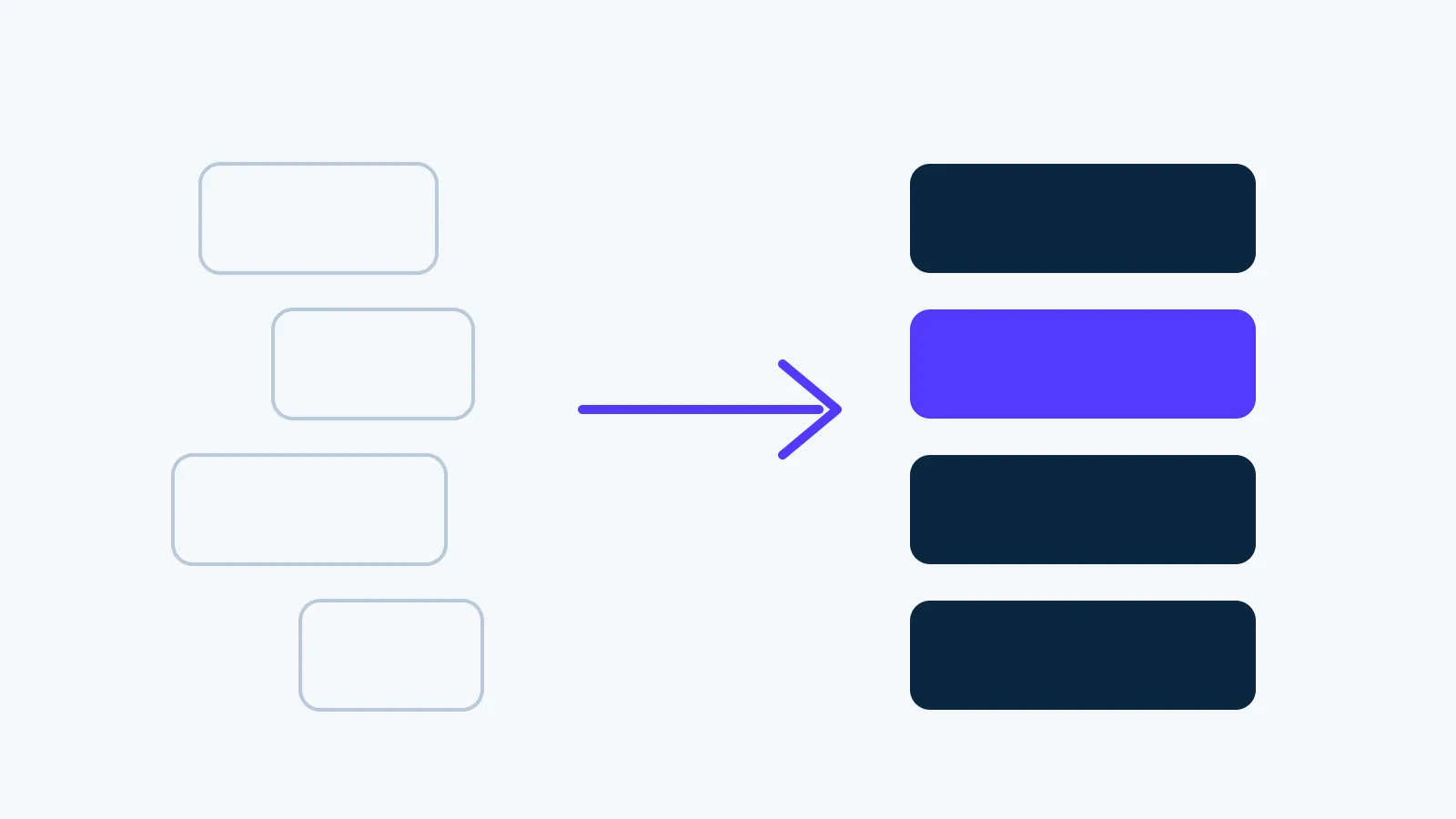
There are two clean strategies, and good migrations use both. Where possible, preserve the original media URL so existing links keep resolving with no redirect needed. Where the path must change, map the old media URL to the new one with a 301 redirect, exactly as you would for a page, so any external link or cached reference still lands.
Then verify. Crawl the old site to list every asset, crawl the new site to confirm each one resolves, and check for 404s in both the page HTML and the file responses. For the full move sequence this fits into, see how to migrate a WordPress site to Lovable, and for the wider signal protection use the WordPress migration SEO checklist.
A practical example
A 200-post blog typically has thousands of image references and a handful of frequently downloaded PDFs. The photos are usually safe if the uploads path is preserved or redirected wholesale, but the PDFs are the trap: people link to them from email, other sites, and social posts, so a single changed PDF URL breaks links you do not even control. Redirecting those file URLs is what keeps that long tail of external links alive.
Why are image URLs worth protecting at all?
Because they earn traffic and links independently of the pages they sit on, and losing them is invisible in the reports most people watch.
Image search sends real visits to sites with useful photographs, diagrams, and product shots, and those visits land on the page containing the image. When the file moves without a redirect, that position resets and has to be earned again from nothing.
Images also get linked and embedded elsewhere. A diagram used in someone’s article, a product photo referenced in a forum post, or a PDF linked from a supplier’s site are all addresses on your domain that other people depend on.
And the loss is quiet. Page level analytics rarely separate image search traffic, so a site can lose it entirely and see only a small unexplained dip in a total nobody breaks down.
The practical rule: image files are URLs, they belong in the redirect map alongside pages, and they are the slowest thing to recover if they are missed.
How do you find every media reference?
In four places, because the media library alone will not tell you what is actually being used.
| Where to look | What it finds | Why the others miss it |
|---|---|---|
| Crawl of the live site | Every image the rendered pages request | The authoritative list |
| Media library export | Files uploaded, including unused ones | Includes files no page references |
| Post content search for the domain | Hard-coded absolute paths inside posts | These break first on a domain change |
| Server access logs | Files being requested from outside | Catches hotlinked and externally linked files |
The third row is the one that causes most breakage. Editors paste absolute URLs into posts, so the image reference contains the full domain and path, and anything that changes either breaks every instance at once.
The fourth row catches the files nobody knows are load bearing: a price list PDF linked from a supplier’s website, or a logo hotlinked by a partner.
What is the safest way to move media?
Keep the paths identical wherever you can, because an unchanged file path needs no redirect and cannot break.
If the uploads structure can be preserved on the new site, preserve it. It is unglamorous and it removes an entire category of risk at zero cost, in the same way preserving page URLs does.
Where paths must change, generate one permanent redirect per file rather than a rule you hope covers the pattern. Wildcards work when a whole directory moves with its structure intact, and they fail silently when the naming changes underneath, which is common when a new platform generates its own filenames.
Re-point in-post references at the same time. A redirect keeps old external links working, and internal references should go directly to the final address rather than through a hop.
Then verify by request rather than by looking at pages. Take the full list of image and file URLs, request every one, and confirm each returns 200 or a single redirect to something that does. A page can look perfect while an image loads from a redirect that a deploy will drop next month.
When is it fine to let media URLs change?
When the files themselves are genuinely being replaced. A rebuild that swaps stock photography for new product shots is not migrating those images, it is publishing different ones, and mapping the old paths to the new files would be misleading rather than helpful.
It is also fine for decorative assets: background textures, icons, and theme furniture that no one links to and that image search has no reason to index. Those can be regenerated freely.
And it is fine for files that should not have been public. Old drafts, superseded price lists, and documents uploaded by accident are better returned as gone than carefully preserved at a new address.
The test is whether anything outside your control depends on the address. If an external site, a search engine, or a printed document points at it, keep it working. If nothing does, you are free.
What breaks after launch, and how do you catch it?
Three failures, all of which pass a casual look at the site and surface weeks later.
The first is images loading through a redirect rather than directly. Everything renders, so nobody notices, and the day a deploy drops the redirect rule every one of those images disappears at once. Catch it by requesting each image URL and checking the status is 200 rather than 301.
The second is alt text lost in the move. The images are fine and the descriptions that made them findable are gone, which removes them from image search and from screen readers in the same stroke. Catch it by comparing alt text counts per page against the crawl of the old site.
The third is files that were only ever reachable by direct link: PDFs, price lists, spec sheets. Nothing on the site links to them, so a crawl of the new site says everything is fine while a supplier’s link to your document returns nothing. Catch it from the old crawl and the access logs rather than from the new site.
Rerun the image and file check a week after launch and again after any deployment that touches routing, because that is when redirect rules quietly disappear.
Key takeaways: migrating media without broken links
Broken images are just unmapped URLs. Move every file, preserve its URL or 301 it when the path changes, and crawl before and after to confirm nothing 404s, including downloadable files that are often linked externally. Images carry SEO value through Google Images, so a clean media migration protects traffic as well as layout. WPBuildAI transfers and re-links every asset and verifies the lot on both sides of the cutover.
Questions people ask before moving
How do I migrate WordPress images without broken links?
Transfer every file, preserve its URL or map it to a 301 when the path changes, and crawl the site before and after launch to confirm nothing returns a 404. Broken images are just files whose links were not updated, so the fix is the same mapping discipline used for pages. WPBuildAI moves every image, PDF, and file, re-links each reference, and verifies on both sides of the cutover so nothing dead ships.
Do images affect SEO in a migration?
Yes. Images can rank and drive traffic through Google Images, and a broken image loses that visibility as well as breaking the page layout. Preserving or redirecting image URLs keeps that value, while a 404’d image forfeits it. Alt text and the surrounding content matter too, so carry those across unchanged along with the files themselves.
What about PDFs and downloadable files?
They are the highest-risk media, because people link to them from email, other websites, and social posts, so their URLs live outside your control. If a PDF’s URL changes and nothing redirects it, every one of those external links breaks. Keep the original file URLs where possible, and 301 the ones that must change, so the long tail of external links keeps resolving.
Should I just leave images hosted on the old site?
No. Hotlinking back to the old WordPress install leaves you dependent on a site you are trying to retire; the day it goes offline, every image breaks. Re-host the critical files on the new site and redirect their old URLs. Leaving media on the old server only postpones the breakage to whenever that server is finally switched off.
Why do image URLs matter enough to redirect?
Because they earn traffic and links independently of the pages holding them. Image search sends real visits, and diagrams, product shots, and PDFs get linked and embedded by other people. The loss is also quiet: page level analytics rarely separate image search traffic, so a site can lose it entirely and show only a small unexplained dip in a total nobody breaks down.
How do I find every image and file my site actually uses?
Four places. A crawl of the live site gives the authoritative list of what rendered pages request. The media library export adds uploaded files. Searching post content for your own domain finds hard-coded absolute paths, which break first when anything changes. And server access logs catch hotlinked files and documents linked from other people’s sites.
What media problems show up weeks after launch?
Three. Images loading through a redirect rather than directly, which works until a deploy drops the rule and they all vanish at once. Alt text lost in the move, which removes images from image search and from screen readers together. And files reachable only by direct link, like PDFs and price lists, which a crawl of the new site will never miss because nothing points at them.